

- Mark as New
- Subscribe to RSS Feed
- Permalink
11-14-2024 06:24 PM (Last edited 11-14-2024 06:28 PM ) in
TabletsSolved! Go to Solution.
2 Solutions
Accepted Solutions

- Mark as New
- Subscribe to RSS Feed
- Permalink
11-14-2024 06:27 PM in
Tablets
 cs_member10
- Mark as New
- Subscribe to RSS Feed
- Permalink
11-15-2024 09:45 AM in
TabletsDear Samsung Member,
Greetings from Samsung Customer Support!
As per your concern, we would request you kindly perform the following steps to resolve your issue.
● Kindly check the space on your device:
Path: Settings > Battery and device Care > Storage
To improve the device performance there should be sufficient space.
● Kindly check the RAM in your device:
Path: Settings > Battery and Device Care > Memory
The device's RAM should be free to improve performance. So clear the RAM once a day.
● Clear app cache through Device care:
Tap on Settings>Device Care> Storage> Clean Now.
● The clear cache memory of a particular application:
Settings > Apps > Now pick the app that you like to clear off the cache memory > Storage > Clear Cache.
● Is there any unnecessary application running in the background?
Kindly close the background running applications in the device (Tap the left side key & close the background running application).
● Kindly uninstall that application by following the below steps and check once as the issue might occur due to third-party applications: Settings> Apps> Select the third-party application from Apps> Uninstall.
● Kindly check if you are using a memory card on your device.
If you are using the memory card on your device. we will advise you to safely remove it from your device. For this follow the below steps:
● Step 1: Before removing the memory card, first, unmount it for safe removal.
On the Home screen, tap Apps > Settings > Device maintenance > Storage > More option > Storage settings > SD card > Unmount. Insert the ejection pin into the hole on the tray to loosen the tray.
Note: Ensure that the ejection pin is perpendicular to the hole. Otherwise, the device may be damaged.
Step 2: Pull out the tray gently from the tray slot.
Step 3: Remove the memory card.
Step4: Insert the tray back into the tray slot
Note: Please ensure that the memory card is not removed while the device is transferring or accessing information. Doing so can cause data to be lost or corrupted or damage to the memory card or device.
Samsung is not responsible for losses that result from the misuse of damaged memory cards, including the loss of data.
● Remove third-party accessories: Due to ''3rd Party'' (Not provided by Samsung) Accessories, (Like ''Chargers, USB Cables'' etc.) device might also hang. So kindly avoid the usage of these 3rd party accessories.
● If you enabled Power Saving Mode, Power saving mode limits the performance of the device. So we recommend disabling the Power Saving mode in your device.
● Update the software if available: https://www.samsung.com/in/support/mobile-devices/samsung-galaxy-smartphone-how-to-update-software/
● You can reset your device by following the steps.
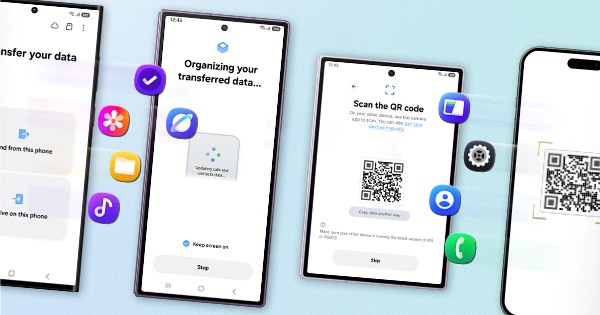
1. Kindly create a data backup of your device via the SMART switch mobile application or http://www.samsung.com/in/support/smartswitch pc suite.
2. Remember the Google password before resetting the device because it is required during initial setup.
3. If you do not remember then advise to reset (Forgot password) his/her Google account.
Path: Settings> General Management.>Reset>Temporary cloud backup or External storage backup>After backup tab on Factory data reset to reset your device to its factory default settings.
This will erase all data, including files and downloaded apps.
If the issue still occurs, please visit the service center for a physical device inspection. You can locate your nearest service center with this given link: https://www.samsung.com/in/support/service-center/
Warm Regards,
Samsung Customer Support
- Mark as New
- Subscribe to RSS Feed
- Permalink
11-14-2024 06:27 PM in
Tablets
- Mark as New
- Subscribe to RSS Feed
- Permalink
11-14-2024 06:28 PM (Last edited 11-14-2024 06:29 PM ) in
Tablets
- Mark as New
- Subscribe to RSS Feed
- Permalink
11-14-2024 07:24 PM in
Tablets
- Mark as New
- Subscribe to RSS Feed
- Permalink
11-14-2024 07:57 PM in
Tablets
- Mark as New
- Subscribe to RSS Feed
- Permalink
11-14-2024 06:30 PM in
Tablets
- Mark as New
- Subscribe to RSS Feed
- Permalink
11-14-2024 06:32 PM in
Tablets
- Mark as New
- Subscribe to RSS Feed
- Permalink
11-14-2024 06:35 PM in
Tablets
- Mark as New
- Subscribe to RSS Feed
- Permalink
11-14-2024 06:32 PM in
Tablets
- Mark as New
- Subscribe to RSS Feed
- Permalink
11-14-2024 06:39 PM in
Tablets
